
Frequently Asked Questions
Find answers to common questions about creating passport photos with our free online tool.
Getting Started
How do I create a passport photo?
- Upload your photo - Click the upload area or drag & drop an image
- Adjust & enhance - Use the tools to adjust brightness, remove background, etc.
- Choose your size - Select your country's passport photo dimensions
- Download - Get your photo as a single image or print-ready sheet
Is this service really free?
What image formats are supported?
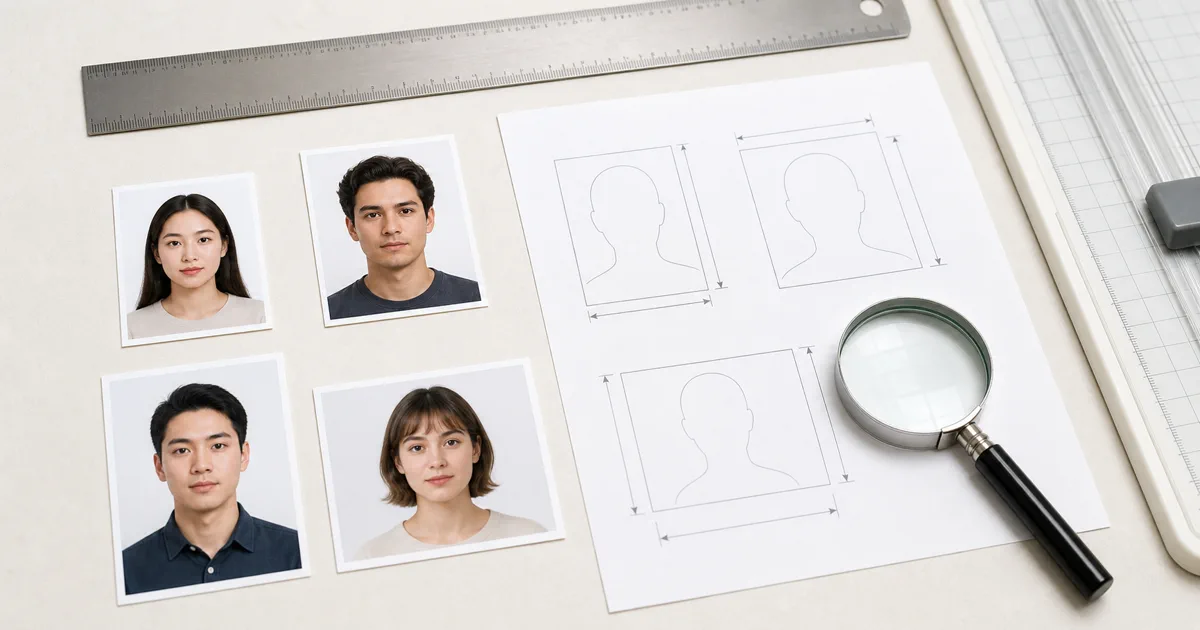
Photo guide preview
Frequently Asked Questions: what to check before download
Use this Frequently Asked Questions guide to check the photo size, background, face position, and export format before you upload or print your document photo.
Before submitting, compare the final crop against your appointment checklist. A clean source photo, even lighting, and the right print resolution usually matter more than aggressive editing or artificial sharpening.
Photo Requirements
What makes a good passport photo?
- Face the camera directly with a neutral expression
- Keep your eyes open and clearly visible
- Use good, even lighting (natural light is best)
- Use a plain, light-colored background
- No glasses, hats, or head coverings (unless religious)
- Recent photo (within the last 6 months)
What background color should I use?
Can I wear glasses in my photo?
Features
How does background removal work?
What is the print sheet feature?
Can I use keyboard shortcuts?
Yes! Here are the available shortcuts:
- Ctrl+Z - Undo
- Ctrl+Y - Redo
- R - Rotate image
- F - Flip image
- D - Toggle dark mode
Privacy & Security
Are my photos uploaded to a server?
Do you store my personal data?
Printing
Where can I print my passport photos?
- At home: Use a color inkjet/laser printer with photo paper
- Photo labs: CVS, Walgreens, Walmart, Costco, etc.
- Online services: Shutterfly, Snapfish, or local print shops
Use the 4 x 6 inch print sheet option for standard photo lab printing.
What paper should I use?
Before You Submit Your Photo
Always compare the final file with the latest instructions from the passport office, embassy, consulate, or online application portal. Requirements can vary by country and document type, even when the photo size looks similar.
- Use the original camera photo, not a compressed screenshot or social media download.
- Check that the face is sharp, centered, and evenly lit.
- Make sure the background is plain and has no strong shadow.
- Print at actual size when using a print sheet.
- Contact support with the country, document type, and rejection reason if you need help.
- Keep the original file until your application is accepted.