VisaPicPro

Frequently Asked Questions

Find answers to common questions about creating passport photos with our free online tool.

Getting Started

How do I create a passport photo?
  1. Upload your photo - Click the upload area or drag & drop an image
  2. Adjust & enhance - Use the tools to adjust brightness, remove background, etc.
  3. Choose your size - Select your country's passport photo dimensions
  4. Download - Get your photo as a single image or print-ready sheet
Is this service really free?
VisaPicPro includes 1 free standard single-photo download per day. Pro plans unlock HD files, print-ready sheets, and unlimited downloads.
What image formats are supported?
We support JPEG and PNG images up to 10MB. For best results, use a high-resolution photo (at least 600 x 600 pixels).
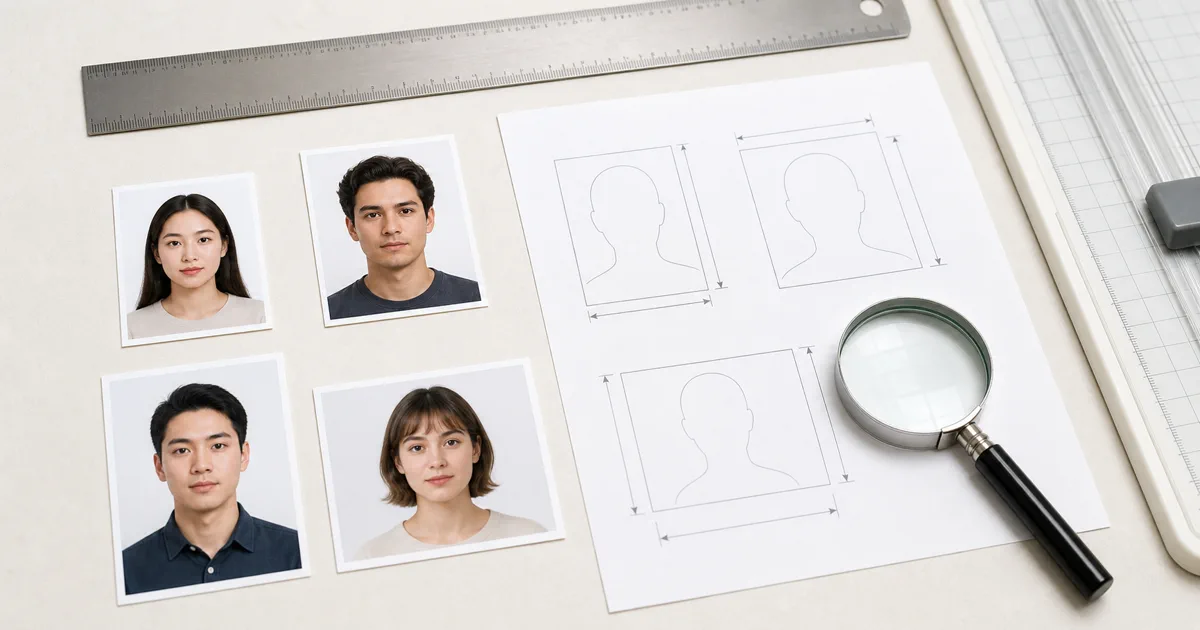
Frequently Asked Questions realistic preview

Photo guide preview

Frequently Asked Questions: what to check before download

Use this Frequently Asked Questions guide to check the photo size, background, face position, and export format before you upload or print your document photo.

Before submitting, compare the final crop against your appointment checklist. A clean source photo, even lighting, and the right print resolution usually matter more than aggressive editing or artificial sharpening.

Photo Requirements

What makes a good passport photo?
  • Face the camera directly with a neutral expression
  • Keep your eyes open and clearly visible
  • Use good, even lighting (natural light is best)
  • Use a plain, light-colored background
  • No glasses, hats, or head coverings (unless religious)
  • Recent photo (within the last 6 months)
What background color should I use?
Most countries require a white or off-white background. Some countries like India accept a light blue background. Our tool can automatically remove your background and replace it with the correct color for your document type.
Can I wear glasses in my photo?
Most countries now require you to remove glasses for passport photos. This includes the US, UK, and many others. The main exceptions are for medical reasons with documentation.

Features

How does background removal work?
Our AI-powered background removal uses advanced machine learning to detect the person in your photo and remove the background. You can then choose a solid color background that meets your document requirements. For fine-tuning, use the manual cleanup tool.
What is the print sheet feature?
The print sheet creates a layout with multiple copies of your photo arranged on standard paper sizes (4 x 6, A4, Letter, etc.). This saves paper and money when printing at photo labs or at home.
Can I use keyboard shortcuts?

Yes! Here are the available shortcuts:

  • Ctrl+Z - Undo
  • Ctrl+Y - Redo
  • R - Rotate image
  • F - Flip image
  • D - Toggle dark mode

Privacy & Security

Are my photos uploaded to a server?
No! All photo processing happens 100% locally in your web browser. Your photos never leave your device and are never uploaded to any server. This ensures complete privacy for your sensitive passport photos.
Do you store my personal data?
We only store minimal preferences in your browser's local storage (like dark mode preference). We don't collect personal information, require registration, or use tracking cookies.

Printing

Where can I print my passport photos?
  • At home: Use a color inkjet/laser printer with photo paper
  • Photo labs: CVS, Walgreens, Walmart, Costco, etc.
  • Online services: Shutterfly, Snapfish, or local print shops

Use the 4 x 6 inch print sheet option for standard photo lab printing.

What paper should I use?
Use glossy or matte photo paper for best results. Standard printer paper may not be accepted by passport offices. Photo labs automatically use appropriate paper.

Still Have Questions?

We're here to help! Reach out to our support team.

Contact Us
Back to VisaPicPro

Before You Submit Your Photo

Always compare the final file with the latest instructions from the passport office, embassy, consulate, or online application portal. Requirements can vary by country and document type, even when the photo size looks similar.

Helpful checklist

Practical notes for Frequently Asked Questions

This page is part of the trust layer for VisaPicPro. It explains how users can contact the site, understand the photo workflow, and review the limits of the browser-based service before they upload or export a document photo.

The site is designed around practical passport and visa photo preparation: clear size guidance, visible export choices, and payment wording that separates the daily standard download from HD or print-ready upgrades.

When policy, pricing, or data-handling details change, this page should stay aligned with the editor, checkout page, and support copy so visitors do not see conflicting claims.

Quality notes

Service clarity and user trust notes

VisaPicPro needs support and policy pages that match the real product experience. The wording here avoids broad promises and explains the actual workflow: users can create a standard file, while HD and print-ready exports are paid upgrades when they need stronger output.

Keep screenshots of payment receipts, PayPal transaction IDs, and the browser/device used if you need support after purchase. This makes it easier to match an entitlement with a real payment without asking users for sensitive photo files.

For AdSense and user trust, each public page should describe a real part of the service. Generic placeholder wording, conflicting free/paid claims, and missing contact or privacy details can make the site look unfinished even when the editor works well.

One standard daily download is available for quick use. Choose HD or print-ready export when you need sharper output, repeated downloads, multiple paper sizes, or a printable sheet that keeps the final size consistent.

Before export: preview the crop at full size and check the background edge.
Before submit: compare the file with the latest appointment or upload checklist.
For print: use 300 DPI and avoid resizing the downloaded file manually.
For privacy: keep your original photo local unless an official portal asks for upload.