VisaPicPro

Bangladesh NID photo guide

Bangladesh NID Photo Size and Smart Card Tips

Prepare a clean NID or Smart Card style photo, understand the common 30x36 mm crop, and know what to verify before using the file.

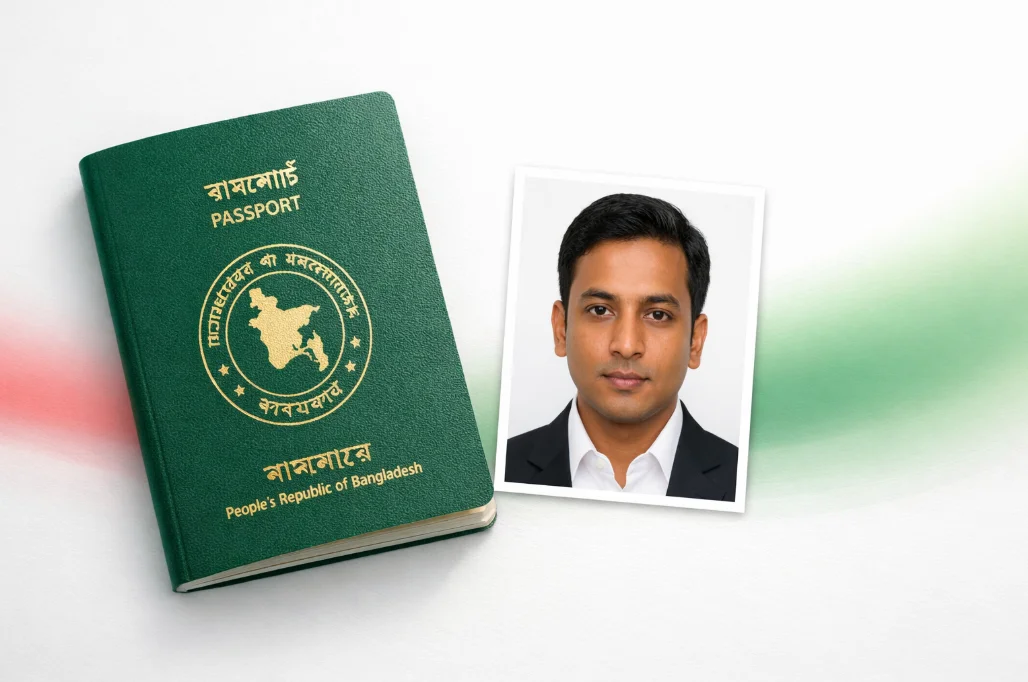
Bangladesh NID Photo Size and Smart Card Tips realistic preview

Photo guide preview

Bangladesh NID Photo Size and Smart Card Tips: what to check before download

Use this Bangladesh NID Photo Size and Smart Card Tips guide to check the photo size, background, face position, and export format before you upload or print your document photo.

Before submitting, compare the final crop against your appointment checklist. A clean source photo, even lighting, and the right print resolution usually matter more than aggressive editing or artificial sharpening.

Quick answer

Common print preset

30 x 36 mm

At 300 DPI

354 x 425 px

Background

Plain light/white

Important

Verify current office rule

Last reviewed: July 20, 2026. NID requirements can vary by workflow, so treat this as preparation guidance, not a replacement for Election Commission instructions.

What this page helps with

Bangladesh NID, Smart Card, and voter-related photo requests can appear in different workflows: online correction, printed forms, local office requests, or supporting document preparation. A common preparation size used by many photo services is 30x36 mm, which converts to about 354x425 pixels at 300 DPI.

Because NID services can change by form and office, verify the exact requirement before final submission. VisaPicPro helps you create a clean crop quickly, but the final acceptance depends on the official instruction for your service.

Photo quality checklist

  • Use a recent photo with a natural face shape and no filters.
  • Look directly at the camera with eyes open and mouth closed.
  • Keep the background plain and evenly lit.
  • Avoid caps, sunglasses, heavy shadows, and low-resolution screenshots.
  • Export at enough resolution for print; 300 DPI is the safest target.
  • Do not stretch or compress the face to force the size.

How to prepare it online

  1. Upload a clear portrait to the VisaPicPro editor.
  2. Choose the Bangladesh NID preset or enter 30 x 36 mm as a custom size.
  3. Center the face and leave natural space around the head and shoulders.
  4. Use a plain light background and check that the final crop is not blurry.
  5. Download the standard file or use Pro when you need an HD print-ready bundle.

NID vs passport photo

Do not use one file blindly for every Bangladesh document. Bangladesh e-Passport applications usually capture the biometric photo at enrolment, while NID workflows may request a prepared image or printed photo depending on the service. For passport-specific rules, read the Bangladesh passport photo guide.

Helpful checklist

Practical notes for Bangladesh NID Photo Size and Smart Card Tips

For Bangladesh NID Photo Size and Smart Card Tips, the safest result starts with a simple front-facing portrait: camera at eye level, shoulders straight, no heavy shadows, and a plain background that can be cleaned without cutting into the hair or face outline.

Do not reuse a cropped social-media profile picture unless it still has enough resolution. A low-quality source can pass the preview on screen but look soft after printing, especially when a 300 DPI sheet is required.

Use the country preset first, then compare the size, background, and face position against the exact passport, visa, ID, or embassy checklist for your appointment. Some offices update upload limits without changing the public photo size.

The standard daily download is useful for a quick single-photo file. Upgrade only when you need HD quality, a print-ready sheet, or repeated downloads for several applications.

Quality notes

Final quality checks for Bangladesh NID Photo Size and Smart Card Tips

Use Bangladesh NID Photo Size and Smart Card Tips as a working checklist before you visit an office, upload to a portal, or send the photo to a print shop. The page is meant to help you avoid avoidable rejection reasons, not just show a size number.

Take the photo again if the eyes are soft, the face is tilted, the background has visible texture, or the hair blends into the wall. Those issues usually cannot be fixed cleanly later without creating an artificial-looking result.

For digital upload, check pixel size, file format, and file-size limit. For printing, check physical dimensions and DPI before cutting. If the page or embassy asks for a recent photo, do not reuse an old portrait even if the dimensions are correct.

One standard daily download is available for quick use. Choose HD or print-ready export when you need sharper output, repeated downloads, multiple paper sizes, or a printable sheet that keeps the final size consistent.

Before export: preview the crop at full size and check the background edge.
Before submit: compare the file with the latest appointment or upload checklist.
For print: use 300 DPI and avoid resizing the downloaded file manually.
For privacy: keep your original photo local unless an official portal asks for upload.